How to Make a Payment on Your Titan Shops Account
If using a Titan Shops gift card, voucher or special account to make a payment, please contact Customer Support for assistance.
While logged in to your Titan Shops account, verify that your billing address exactly matches the address on file with your credit card issuer.
Log in to your Titan Shops account using your CSUF portal credentials. Titan Shops Login

In the upper right corner of the page, select Welcome then Invoices in the menu.

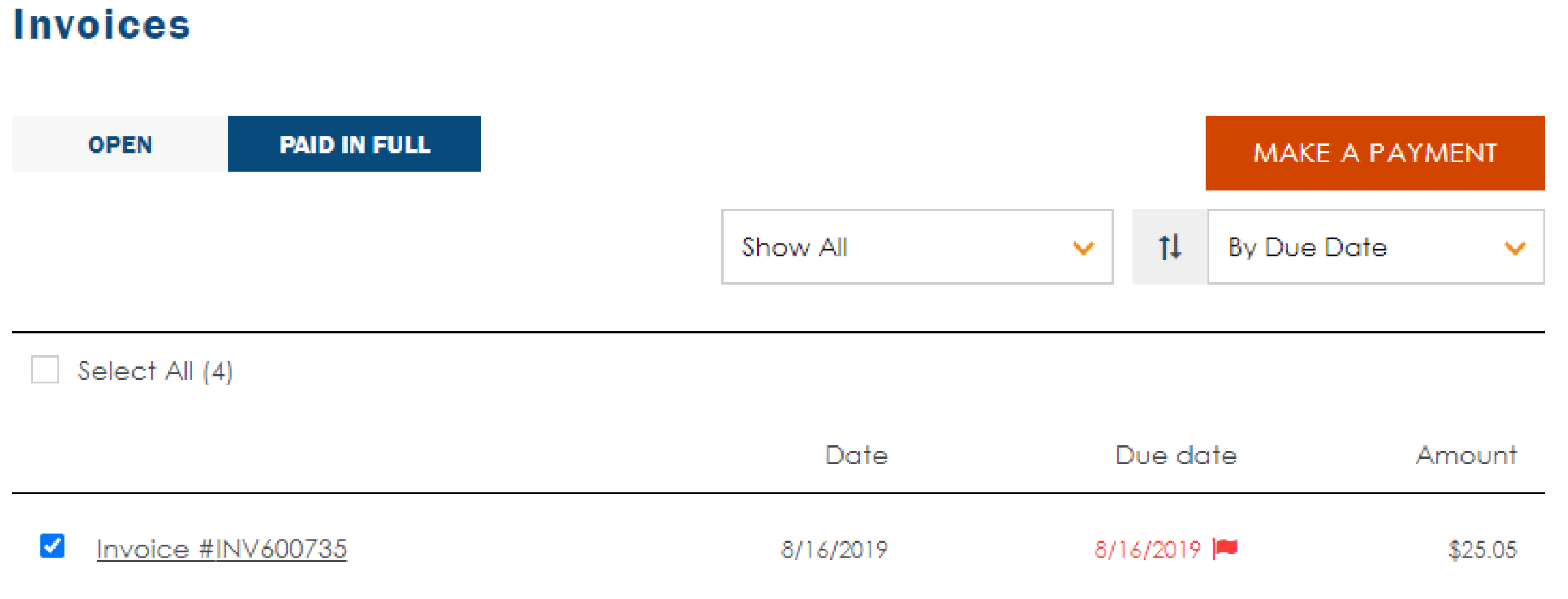
To view details, select the invoice number. Check the corresponding box and click Make a Payment.
Verify the billing address of the credit card; if it is wrong, the payment will not be processed. Select or add a new credit card for payment. Once confirmed, select Submit.

When payment has been submitted, you will see a "Thank you!" message. You will receive an email with your payment confirmation. Please direct questions to Customer Support.
